How does Wave handle multiple business profiles under one login?
Managing several businesses or clients doesn't have to mean juggling multiple logins. With Wave Accounting, freelancers and bookkeepers can manage multiple business profiles from a single account — securely and efficiently. This guide explores how the system works, who benefits, and how to stay organized with multi-profile access inside Wave. Learn how Wave Accounting lets you manage multiple business profiles under one login. Ideal for freelancers and bookkeepers, Wave helps keep clients organized without switching accounts.

How Does Wave Handle Multiple Business Profiles Under One Login?
Introduction
If you're a freelancer, bookkeeper, or small business service provider, managing multiple clients often means juggling several financial records, dashboards, and tools. You need a system that keeps each business organized — but without the headache of logging in and out of multiple accounts.
That’s where Wave Accounting comes in.
One of Wave’s most practical features is its ability to let you manage multiple business profiles under a single login. This is especially helpful for freelancers and virtual bookkeepers who handle finances for more than one client or project.
In this in-depth blog post, we’ll answer:
How does Wave handle multiple business profiles under one login?
We’ll explore how the feature works, what it looks like in real use, and how to manage separate businesses efficiently — even as a complete beginner.
What Are Business Profiles in Wave?
Before we dive deeper, it’s important to understand what business profiles are in Wave.
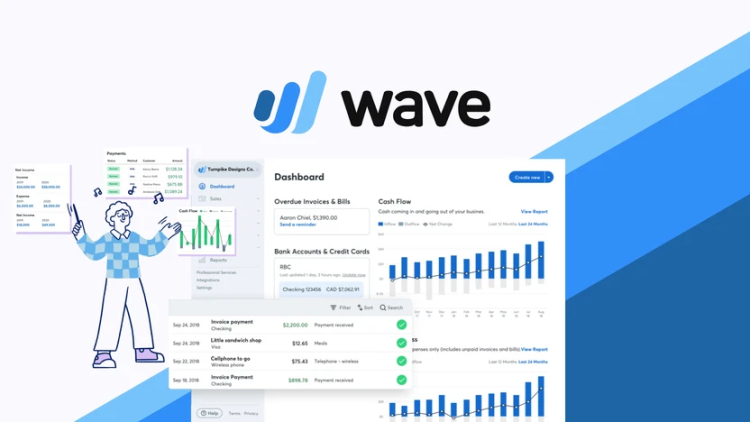
In Wave Accounting, a business profile is essentially a unique company or client workspace. Each profile contains its own:
-
Dashboard
-
Transactions
-
Invoices and payments
-
Customers and vendors
-
Chart of accounts
-
Tax settings
-
Bank connections
-
Reports (Profit & Loss, Balance Sheet, etc.)
Every business profile you create in Wave functions independently from the others. This makes it possible to serve multiple clients (or manage different businesses) without overlap, confusion, or data leaks.
One Login, Multiple Workspaces
Here’s where Wave simplifies your work:
With just one email and password, you can access every business you manage. You no longer need to create or manage separate email accounts or switch between logins.
Once logged in:
-
You can switch between businesses using a simple drop-down menu
-
You can create new business profiles in seconds
-
You can keep every client’s data isolated and secure
This centralized access gives you the convenience of managing all your clients — or businesses — from a single control panel.
Who Benefits From This Feature?
This feature is ideal for:
-
Freelance bookkeepers serving multiple clients
-
Accountants handling small businesses
-
Consultants managing multiple business ventures
-
Entrepreneurs with multiple companies or income streams
-
Virtual assistants performing invoicing and financial support
If you fall into any of these categories, you no longer have to worry about creating dozens of email IDs or logging in and out of different Wave accounts.
How to Add Multiple Business Profiles in Wave
Let’s walk through how to create and access multiple businesses from your single Wave login.
Step 1: Log into Your Wave Account
Go to waveapps.com and log in using your existing email and password.
Step 2: Access the Business Dropdown
On the top-left corner of your Wave dashboard, you’ll see your current business name. Click it.
A dropdown menu appears showing your current business profile and an option labeled “Create a new business.”
Step 3: Add a New Business Profile
Click “Create a new business” and enter the required details:
-
Business name
-
Business type (Sole Proprietor, LLC, etc.)
-
Country and currency
-
Industry type
-
Fiscal year start date
Click Save, and Wave will automatically redirect you to that new business profile’s dashboard.
You can repeat this process for every client or business you want to manage.
What Makes Each Business Profile Unique?
Each business profile you create in Wave is an independent accounting workspace. That means:
-
Separate Dashboards: Each business has its own interface showing revenue, expenses, and key financial summaries.
-
Unique Bank Accounts: You can connect different bank accounts to each business without overlap.
-
Individual Invoices: You can design custom invoice templates per business, including logos and color schemes.
-
Custom Tax Settings: Each business can have its own tax rules based on country or client requirements.
-
Independent Reports: Financial reports are generated individually and only include data from that specific business.
-
User Permissions: You can invite different users to different business profiles without giving them access to all your Wave data.
Real-Life Example: Freelance Bookkeeper
Let’s say you’re a freelance bookkeeper named Aria. You manage accounting for four clients:
-
A café called “Bean & Brew”
-
A fashion designer “StyleLoop”
-
A photographer “Moments Studio”
-
A fitness trainer “FitSmart”
You set up four separate business profiles in your Wave account:
-
Bean & Brew Café
-
StyleLoop Fashions
-
Moments Studio
-
FitSmart Trainer
Each profile:
-
Tracks income and expenses separately
-
Connects to its respective bank account or uses manual entries
-
Sends uniquely branded invoices
-
Generates its own Profit & Loss Statement, Balance Sheet, and more
-
Keeps customer and vendor lists distinct
You can switch between any of these clients in seconds using the drop-down menu, without ever logging out.
What You Can Do Per Business Profile
Here’s a breakdown of what Wave lets you manage individually for each business profile:
| Feature | Handled Per Business Profile |
|---|---|
| Dashboard | Yes |
| Invoices & Estimates | Yes |
| Bank Connections | Yes |
| Chart of Accounts | Yes |
| Tax Settings | Yes |
| Customers & Vendors | Yes |
| Financial Reports | Yes |
| Receipt Uploads | Yes |
| Currency Setup | Yes |
| User Invitations | Yes |
Every profile is like a self-contained business — just like separate companies in Tally or QuickBooks.
How to Switch Between Business Profiles
Switching between profiles is easy:
-
Click your current business name (top-left of the screen)
-
A list of all businesses will appear
-
Click the one you want to manage
-
Your dashboard updates to that business instantly
This switch takes less than three seconds and lets you jump from one client’s workspace to another smoothly.
Reports Generated Per Business
Each business profile generates its own set of professional financial reports. These include:
-
Profit & Loss Statement
-
Balance Sheet
-
Cash Flow Report
-
Sales Tax Report
-
Aged Receivables and Payables
-
General Ledger
-
Income by Customer
-
Expenses by Vendor
-
Trial Balance
Reports can be downloaded as PDF or Excel (CSV) and shared with clients through email or reporting platforms.
Inviting Clients to Specific Business Profiles
Wave also allows you to share access to a specific business profile with your client, assistant, or team member.
Steps:
-
Go to the business profile you want to share
-
Click Settings > Users
-
Click Add a user
-
Enter the user’s email address
-
Assign a role:
-
Viewer (read-only access)
-
Editor (can modify data)
-
Admin (full access)
-
This ensures clients only see their own data, even if you're managing multiple businesses.
Wave vs. Other Accounting Tools
Let’s compare how Wave handles multiple clients under one login compared to other tools:
| Tool | Multiple Business Profiles | One Login for All | Free Core Features |
|---|---|---|---|
| Wave | Yes | Yes | Yes |
| QuickBooks | Limited (paid plan) | No (separate logins) | No |
| Zoho Books | Yes (paid plan) | Yes | No |
| Tally Prime | Yes | Yes (offline only) | No |
Wave stands out for offering free, cloud-based access with separate profiles under one login — ideal for freelancers and beginner bookkeepers.
Common Mistakes to Avoid
1. Mixing Up Business Profiles:
Always confirm you're working in the correct business before uploading receipts or entering transactions.
2. Reusing Bank Connections Across Businesses:
Avoid linking the same bank account to multiple profiles unless it’s shared revenue.
3. Overwriting Invoice Templates:
Each business can use a unique branding layout. Don’t use the same design for all.
4. Inviting Wrong Users to the Wrong Business:
Double-check user access to make sure clients don’t see other businesses.
5. Forgetting to Customize Tax Settings:
Set appropriate tax rates per country or region for each business.
FAQs
Q: Is there a limit to the number of business profiles I can create?
There is no officially stated limit, but Wave typically supports up to 10–15 businesses per account comfortably.
Q: Can clients see other businesses in my Wave account?
No. Clients only see the business you specifically invite them to.
Q: Do I need a separate email for each business?
No. All businesses can be created and managed under your single email login.
Q: Can I delete a business profile I no longer need?
You can archive unused business profiles or request deletion via Wave support.
Q: Can I use Wave’s mobile app for each business?
Yes. The app allows switching between businesses just like the desktop version.
Final Thoughts
Wave makes it extremely easy and efficient to manage multiple business profiles under one login. Whether you're handling finances for five clients or running two of your own ventures, this setup allows you to:
-
Keep records organized
-
Switch between businesses seamlessly
-
Avoid duplicate logins
-
Maintain full control over each business
-
Share access without compromising security
It’s ideal for freelancers, accountants, and small business service providers who need a free, cloud-based solution to handle financial tasks professionally.
If you’re just starting out or switching from tools like Tally or spreadsheets, Wave’s multi-profile feature provides the structure, clarity, and simplicity you need — all in one account.
What's Your Reaction?