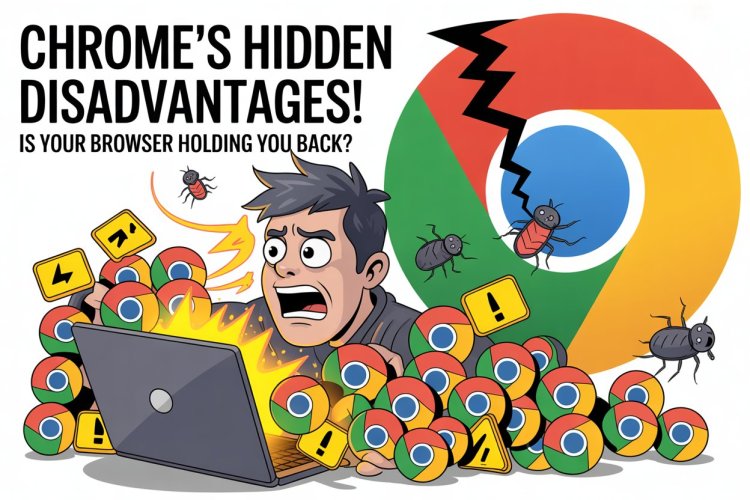
What Are the Disadvantages of Using the Google Chrome Browser?
Explore the key disadvantages of using Google Chrome — from privacy risks and limited customization to high memory usage — and learn how to choose the right browser for your needs.

A Realistic Look at the World’s Most Popular Browser
Executive Summary
Google Chrome dominates the browser market — powering more than 60% of global internet traffic. Its speed, simplicity, and seamless integration with Google services make it a favorite for millions. But even the best software has trade-offs. Chrome’s unmatched performance comes with certain drawbacks — from heavy memory usage and limited customization to data-tracking concerns and reduced control for advanced users.
This blog explores these disadvantages in depth, compares Chrome to other browsers, and helps you decide whether its convenience truly fits your digital priorities.
Introduction: When Speed Meets Sacrifice
Open any computer, and there it is — Google Chrome, the default window to the web. It loads quickly, syncs your data effortlessly, and integrates with Gmail, YouTube, and Drive like a well-oiled machine. Chrome has become so central to online life that switching browsers almost feels inconvenient.
Yet, beneath its clean interface and lightning speed lies a set of compromises many users overlook. Chrome isn’t perfect — and understanding its limitations can help you make smarter choices about how you browse, protect your data, and optimize performance.
Just like a sports car that delivers incredible acceleration but guzzles fuel, Chrome’s strength in speed often comes at a cost. Let’s explore those trade-offs.
1. Privacy and Data-Tracking Concerns
Chrome’s convenience relies on one key principle — data synchronization. The moment you sign into your Google account, your bookmarks, history, passwords, and settings follow you across devices.
But that same synchronization gives Google unprecedented visibility into your online behavior.
-
Chrome tracks search queries through Google Instant, offering predictive results before you even hit Enter.
-
Every interaction, click, and search helps refine Google’s advertising algorithms and user-profiling models.
-
Even Incognito mode offers only local privacy — not total anonymity from ISPs, employers, or Google’s servers.
While Google insists that user data is anonymized and used for better service delivery, the underlying concern remains: Chrome is both a browser and a data collector.
For privacy-focused users, browsers like Mozilla Firefox or Brave provide stricter anti-tracking features and less integration with global ad networks.
2. Limited Customization Options
If you enjoy personalizing your digital tools, Chrome can feel restrictive.
Unlike Firefox, which allows deep interface modifications — rearranging toolbars, customizing icons, and tweaking layout behaviors — Chrome offers minimal UI flexibility.
-
You cannot freely move or resize toolbars.
-
Chrome themes mostly change appearance, not functionality.
-
Many advanced extensions that modify behavior face restrictions under Chrome’s newer security policies (Manifest V3).
This limitation keeps Chrome fast and stable, but it frustrates power users who want fine-grained control. In short, Chrome is designed for efficiency over expression.
3. Tab Management Limitations
If you’re someone who juggles 30 open tabs while researching or managing multiple projects, Chrome’s tab management feels… basic.
While it introduced tab grouping and the ability to “search tabs,” it still lacks Panorama (Tab Groups View) — a feature Firefox once offered, allowing users to visually organize tabs like a desktop workspace.
Without such visual context, tab overload quickly becomes digital clutter. Chrome also lacks native tab suspension controls, meaning it keeps inactive tabs running longer — further straining system resources.
For heavy multitaskers, browsers like Opera and Vivaldi provide superior tab control, quick access panels, and workspace switching for complex workflows.
4. Flash and Update Control Issues
Chrome’s security philosophy prioritizes automation — meaning you can’t manually manage certain components.
While this protects casual users from outdated plugins or vulnerabilities, it frustrates advanced users who prefer update control or need specific older versions for testing.
Additionally, Chrome automatically disables Adobe Flash, and though Flash itself is obsolete, older business applications that rely on legacy systems face difficulties.
In short, Chrome’s “one-size-fits-all” model offers stability but reduces user autonomy.
5. Bookmark & Keyword Sync Gaps
Despite being built for synchronization, Chrome’s bookmark and keyword management remains surprisingly limited.
-
Keywords (used for quick search shortcuts) don’t always sync consistently between devices.
-
Bookmark organization lacks robust tagging or folder intelligence.
-
Competing browsers offer stronger synchronization APIs and metadata preservation.
This might seem minor, but for users who rely on Chrome as a research or productivity tool, missing bookmarks or incomplete keyword sync can disrupt workflow continuity.
6. Memory & Performance Overheads
Perhaps Chrome’s most infamous drawback: RAM consumption.
Each Chrome tab, extension, and plugin runs as a separate process — a design choice that boosts stability but consumes enormous memory.
On older laptops or systems with 4–8 GB RAM, Chrome can slow down other applications or even cause thermal strain.
Why does this happen?
-
Chrome isolates every tab for security (sandboxing).
-
Extensions and background processes add load.
-
Cached data and preloaded pages multiply memory footprint.
The result: blazing speed for one tab, sluggish performance for the system as a whole.
Browsers like Microsoft Edge (Chromium-based) and Opera GX attempt to balance performance by offering built-in memory limiters or “sleeping tabs” — features Chrome still treats as experimental.
7. Resource-Intensive Ecosystem Integration
Chrome isn’t just a browser; it’s a gateway into Google’s universe — Search, Docs, Gmail, Drive, YouTube, Meet, and more.
While this ecosystem offers unparalleled convenience, it creates dependency.
If you use multiple Google apps simultaneously, your device constantly exchanges data streams with Google’s servers — from live sync updates to background service checks.
That means Chrome’s true performance cost isn’t just about RAM — it’s about how deeply it ties your workflow to one corporate infrastructure.
For businesses, this raises important questions about vendor lock-in, data control, and digital autonomy.
8. Competitive Comparisons: How Chrome Stacks Up
| Browser | Strengths | Weaknesses | Best For |
|---|---|---|---|
| Google Chrome | Speed, stability, ecosystem integration | Privacy, RAM usage, limited customization | Everyday users seeking simplicity |
| Mozilla Firefox | Privacy controls, customization, open source | Slightly slower startup | Power users, developers |
| Microsoft Edge | Fast, efficient memory usage | Windows-centric ecosystem | Business professionals |
| Opera | Built-in VPN & ad blocker, excellent tab tools | Occasional compatibility issues | Multi-taskers, privacy users |
| Safari | Integration with Apple ecosystem | Limited on non-Apple devices | Mac & iOS users |
| Brave | Default ad-blocking, privacy-first design | Smaller extension library | Security-conscious users |
While Chrome remains the global favorite for its smooth UX, browsers like Firefox and Edge often outperform it in customization and resource efficiency.
Why Chrome Still Wins
Despite these shortcomings, Chrome dominates for a reason.
Its combination of speed, clean design, and effortless Google integration creates a frictionless browsing experience that’s hard to rival. For 90% of users, Chrome simply “works” — with minimal setup, solid security, and excellent compatibility across websites.
However, those who value privacy, control, or deep customization might find better satisfaction elsewhere.
Chrome isn’t broken — it’s just optimized for convenience, not complexity.
Balanced Conclusion: Convenience vs. Control
In the end, Chrome represents the modern digital trade-off — ultimate ease of use, powered by invisible complexity.
It gives you the fastest way to reach the internet but limits how much you can tinker with what’s under the hood. It collects data to improve services but also builds an advertising empire. It streamlines your digital life but sometimes slows down your device.
For most users, Chrome is a safe and reliable choice. But for tech-savvy professionals and privacy advocates, exploring alternatives like Firefox, Brave, or Edge may offer more transparency and efficiency.
The key takeaway? Choose your browser like you choose any other digital tool — based on your goals, comfort, and control preferences.
How GOMSU Reflects Chrome’s Lessons
At its core, Chrome teaches an important business truth: speed and simplicity drive adoption. But long-term success comes from balancing performance with user control.
That’s exactly what GOMSU’s digital tools are built for.
From CRM systems and HR panels to POS solutions and LMS platforms, GOMSU delivers high-speed, data-secure automation that improves workflow efficiency — without compromising control.
Businesses that embrace GOMSU’s smart integration and optimization tools experience the same benefit Chrome brought to the web — faster operations, smoother interfaces, and stronger scalability.
If Chrome defines how the world browses, GOMSU defines how modern businesses grow.
Final Insight: The Power of Digital Adaptability
Technology evolves faster than habits. The right tools — whether browsers or business platforms — can make or break productivity.
Chrome shows us that success comes from blending performance and design, but the future belongs to systems that add transparency and adaptability too.
So stay informed. Experiment with your tools. And remember — digital efficiency isn’t about using what’s most popular; it’s about using what’s right for you.
What's Your Reaction?